

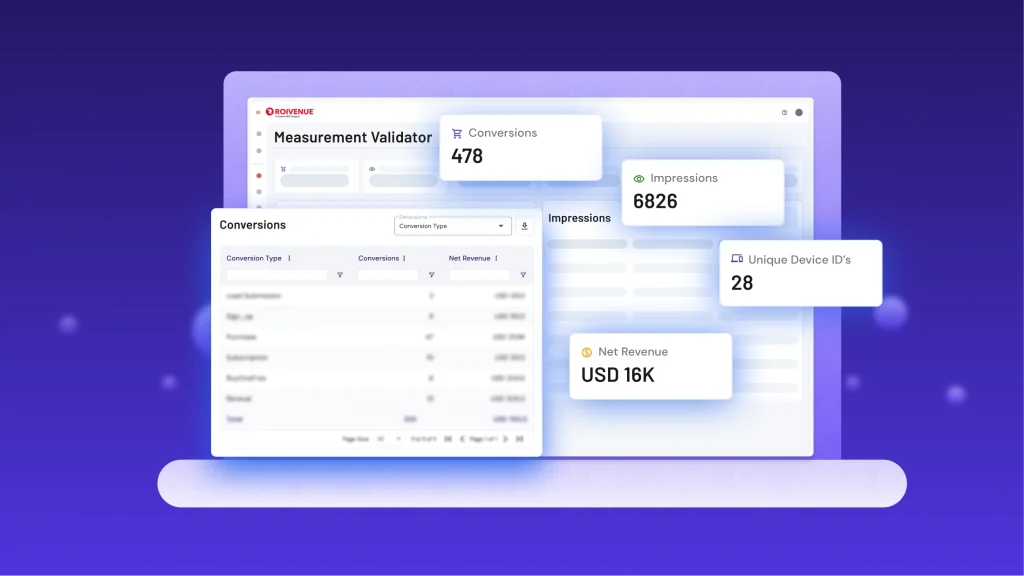
When you implement Roivenue Measurement on your website, you need to confirm the script is actually firing and capturing the right events before any of the data can be trusted. The new Measurement Validator shows what your site is sending to Roivenue, so you can check the setup directly, without exporting anything or waiting on support.
Getting the script live is the easy part. Confirming that each event arrives, with the right value and on the right page, is what takes the work. A missing trigger, a consent banner, or an event named differently can mean conversions or impressions never reach Roivenue, and nothing throws an error to warn you. Partial tracking then feeds every report downstream. We cover that in our article on how incomplete tracking distorts attribution.
What the Validator shows
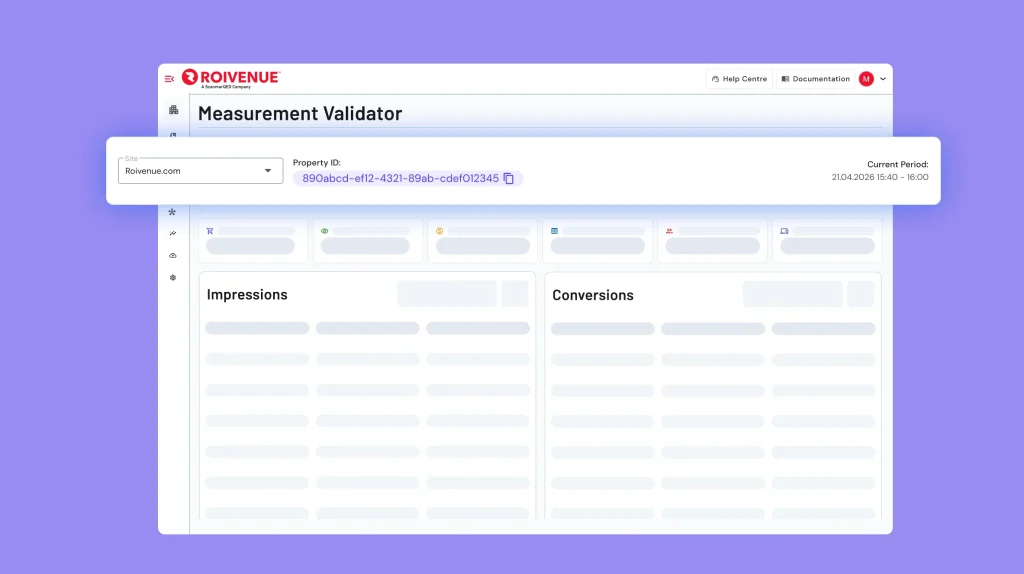
You can find the Validator in the Data section, and it shows what Roivenue Measurement is receiving, per site.
The Property ID stays at the top, so you always know which property you are looking at. A site selector next to it lets you validate each site on its own.
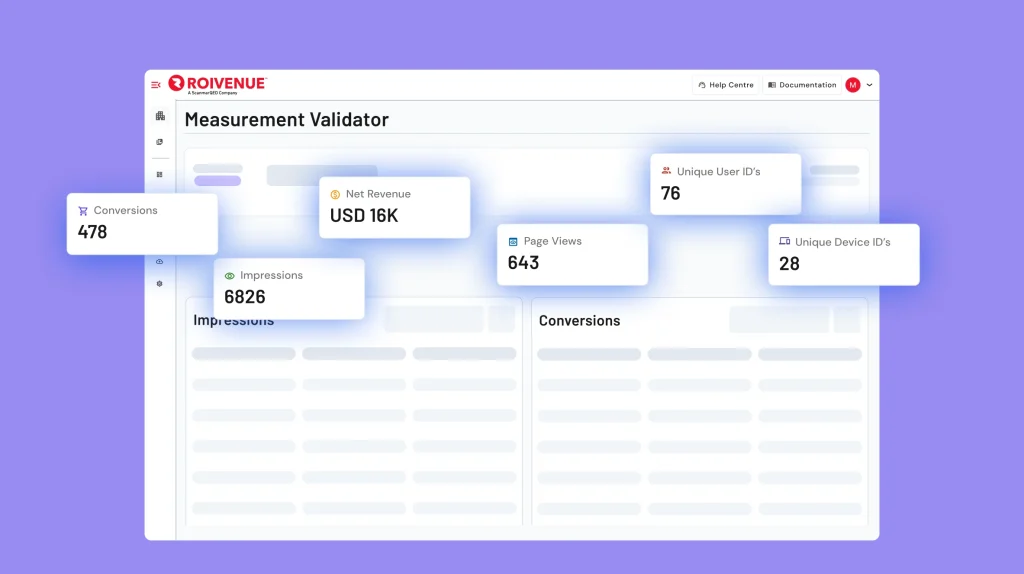
Below that is an overview of recent events, counted by type: Conversions, Impressions, Net Revenue, Page Views, Unique User IDs, and Unique Device IDs. Events are not instant. Something that happens on your site appears here about 25 to 50 minutes later, so the overview reflects what was tracked a short while ago. One glance still tells you whether real data is coming in.
Four detailed views
Each summary number opens to a detailed view showing the records behind it. All four are filterable and sortable.
Conversions lists every conversion with its type, ID, net revenue, and timestamp, so you can confirm key actions are captured.
Impressions shows the query strings received, so you can check campaign parameters come through.
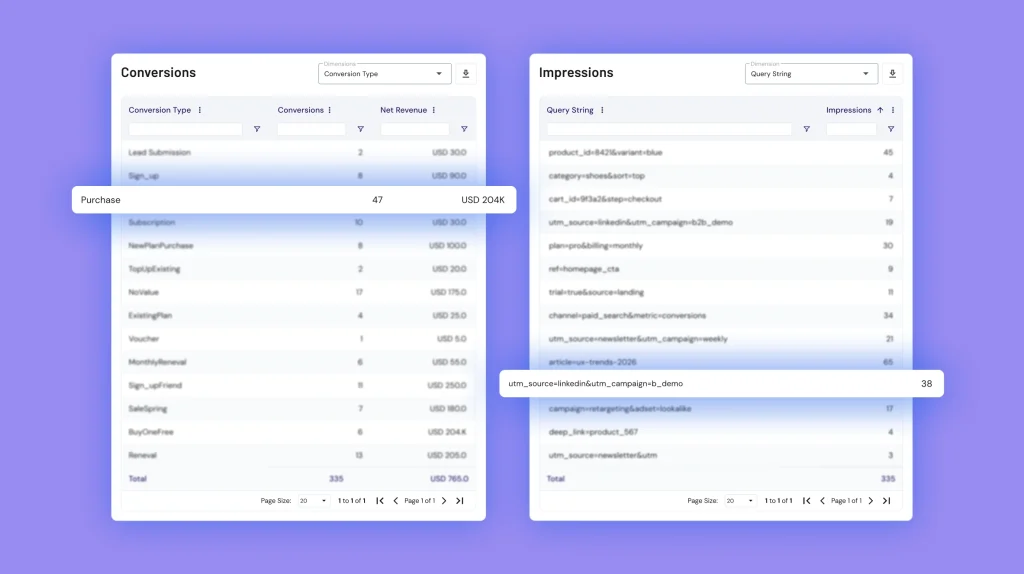
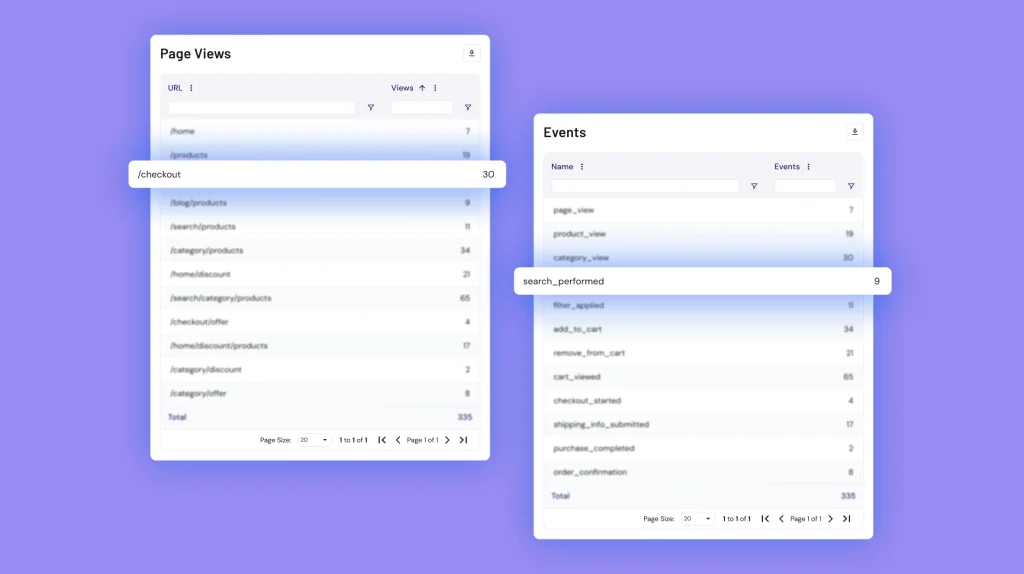
Page Views lists every URL where tracking fired, with counts, to spot coverage gaps.
Events list every event with its count, so you can confirm what you set up is firing.
Test it on your own site
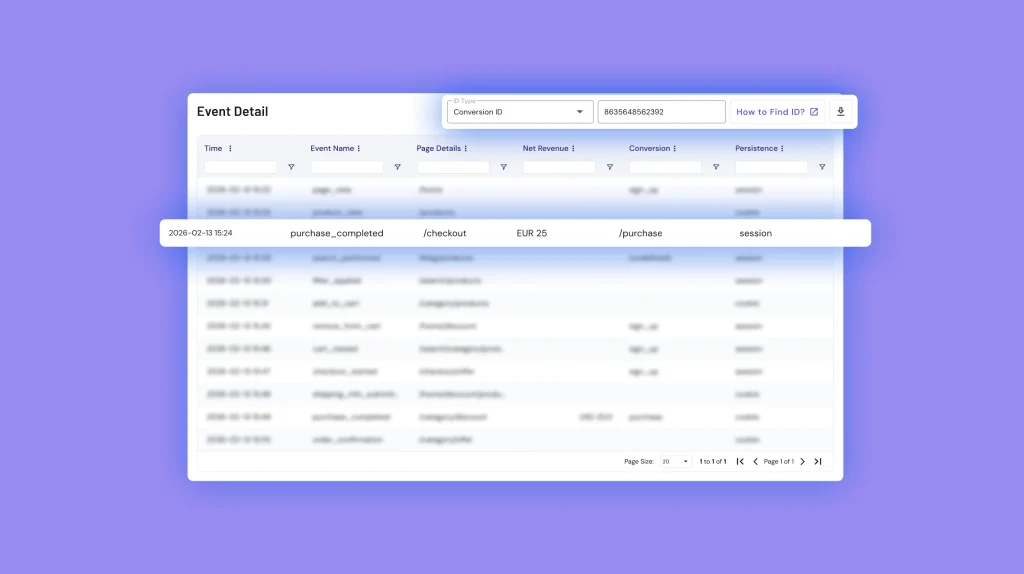
Alongside the four views, the Event Detail table lists individual events with their timestamp, event name, page URL, and value. This is where you check the setup in practice. Open your site, move through it, and make a test purchase or submit a form. Your events reach the table after the same 25 to 50 minute delay, so check back a little later. When they appear, filter by device ID or conversion ID to isolate your own session and follow it from the landing page to checkout. If a step is missing, you see exactly where tracking broke.
FAQ
In the Data section of your Roivenue account. Use the site selector at the top to switch between properties.
The Validator is only available to accounts with Roivenue Measurement active. If it's not showing in your menu, your current plan doesn't include it.
Only pages where the Roivenue tracking script is implemented will appear in the Validator.
Four views: Conversions (type, ID, revenue, timestamp), Impressions (query strings and campaign parameters), Page Views (every URL where tracking fired), and Events (every event type with its count). The Event Detail table combines all of these at the individual event level.
Both. During implementation it's the primary confirmation tool — you don't move forward until the Validator shows events arriving as expected. Ongoing, it belongs in the routine of anyone who owns the data infrastructure: check it after any site update, consent configuration change, or new campaign setup. Silent tracking failures are the ones that corrupt reports for weeks before anyone notices.
Conversions are a specific subset of events — purchase completions or other defined conversion actions, shown with revenue value and ID. The Events view covers everything the script fires: page loads, add-to-cart, form submissions, any custom event you've set up. If a conversion isn't appearing in the Conversions view but the purchase event shows in Events, that's a mapping issue, not a tracking gap.
Each site is validated separately. Use the site selector to switch between sites. The Property ID at the top of the screen always shows which one you're currently looking at.
Events appear in the Validator with a 25–50 minute delay. If you run a test purchase, check back after that window and filter by your device ID or conversion ID to find your session.
Yes — that's the primary use case. Open your site, walk through it, make a test conversion, then return to the Validator after the delay and trace your session from landing page to checkout. Any missing step shows exactly where tracking broke.
Any time you update your site or change your consent setup. A seemingly minor change — a new page template, an updated CMP configuration — can silently break event capture. The Validator confirms everything is still arriving as expected before it affects your reports.
If no data appears at all, contact the Roivenue support team via the help desk link in the Validator. The most common causes are a missing script trigger, a consent banner blocking the event, or a naming mismatch between what you configured and what the site is sending.
Open the Validator
The Measurement Validator is live now in the Data section of Roivenue. Open it during your next implementation, and any time you change your site or consent setup, to confirm your events are arriving as expected.